
The right tool for each project
Construction in Microsoft Project, a campaign in Planner, software in Jira or Azure DevOps, a corporate project in OnePlanner. Nobody needs to switch tools.
Projects
Each project is managed in the tool that makes sense for it: OnePlanner itself, Microsoft Project, Planner Premium, Jira, Azure DevOps or another integrated tool. All of them get the same records, the same summary of schedule, work, cost and progress, and the same indicators.



Microsoft Project, Planner, Jira, Azure DevOps and other tools in the same portfolio
Benefits
Construction in Microsoft Project, a campaign in Planner, software in Jira or Azure DevOps, a corporate project in OnePlanner. Nobody needs to switch tools.
WBS, dependencies, critical path and baselines with nothing to install, with the company calendars and each person's calendar.
Grid, board, Gantt, calendar and reports read the same data. What changes in one view shows up in all of them.
Risks, changes, issues, costs, team, documents and meeting minutes live in the project itself, not in scattered spreadsheets.

Waterfall projects
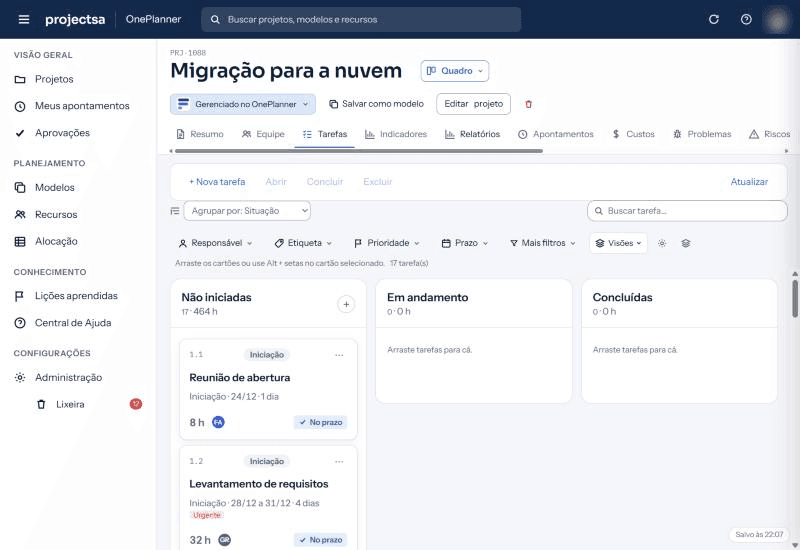
Agile projects
Plan iterative work and track tasks on boards: cards by status, bucket, assignee, priority or label, with drag and drop and due-date filters. Labels, buckets and checklists work as they do in Planner, so the team gets started without long training.
Microsoft Project
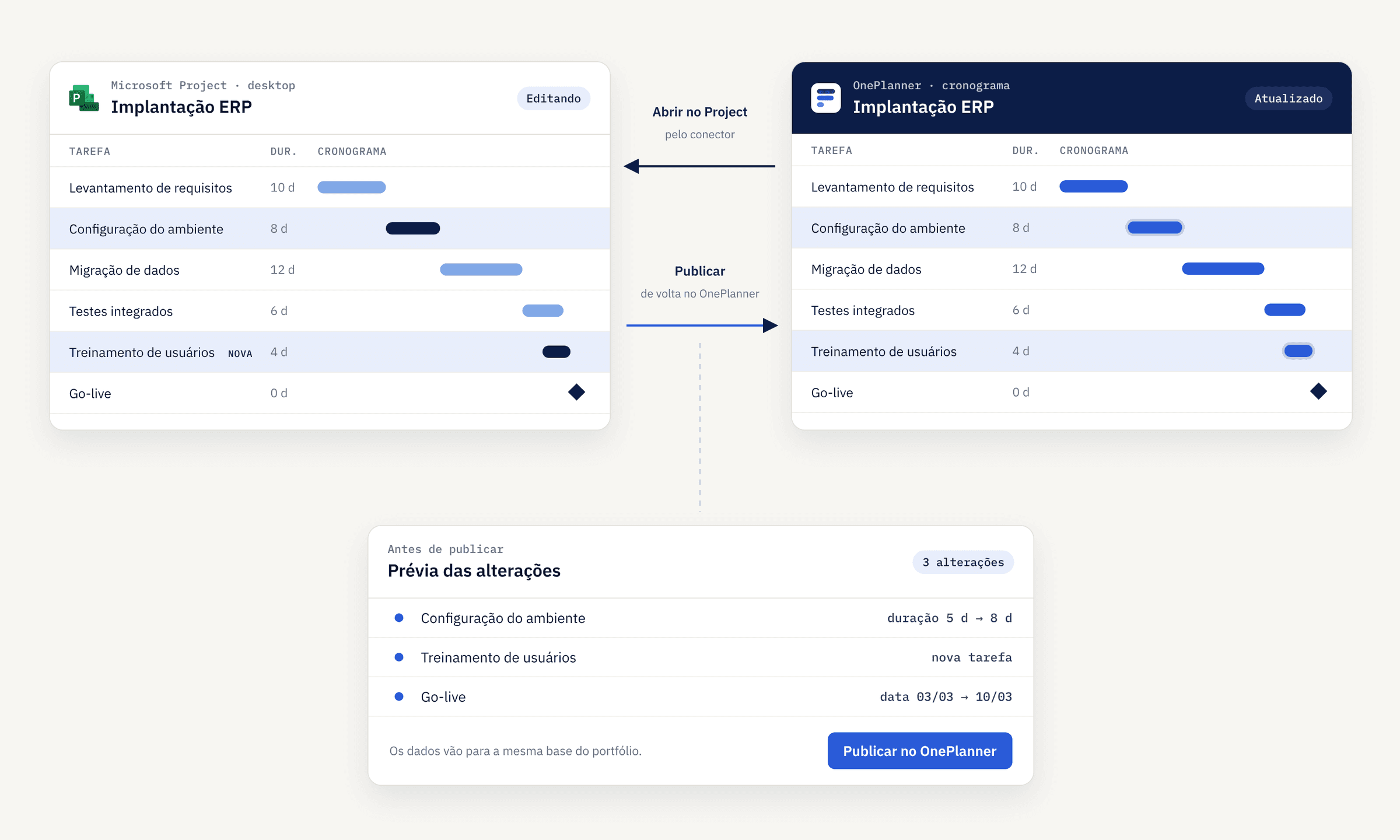
The connector opens the schedule in Project Desktop. People edit as they always have, review a preview of the changes and publish back, and OnePlanner recalculates and keeps the portfolio up to date. Existing schedules come in through Project XML import, with files of up to 50 MB and up to 20,000 tasks.
Integrations
Teams that work in Planner Premium, Jira or Azure DevOps keep the tool they already use. The project enters OnePlanner with the same records as the others and gets health, costs, risks and reports like any other company project.

Complete project
Frequently asked questions
Yes. Each project uses the method and tool that make sense for it, and they all appear together in the portfolio, with the same indicators.
No. The full schedule works in the browser. Project Desktop is optional, for those who prefer to plan in it.
Yes. Import accepts Project XML files of up to 50 MB with up to 20,000 tasks, and Planner Premium plans can be brought into OnePlanner.
Blog
Schedule a demo. We show the platform with sample data similar to your company's and answer your PMO's and IT's questions.


