
Execution
Project timesheets: how to roll out time tracking without team resistance

Few PMO initiatives meet as much resistance as time tracking. The team sees it as control, the manager forgets to approve and, after a few months, the data is so incomplete that nobody trusts it. Most of the time, the problem is not the idea of tracking time, it is the way tracking was rolled out.
Why timesheets usually fail
- Nobody knows what it is for: the team logs time but never sees the result.
- It is too much work: people have to find the project and task among hundreds of options.
- Approval stalls: time entries wait weeks for the manager.
- Confusing rules: nobody knows whether they can log time on Saturday, log last month or go over the working day.
How to roll it out
- Explain why: actual project cost, team capacity and better estimates on future projects. Show the reports that will use the data.
- Show only what matters: each person should see only their own tasks, not the whole project catalog.
- Choose the right level: not every project needs hours. Some can be tracked by percent complete alone.
- Set a few rules and put them in the system: open period for time entry, daily limit, overtime handling.
- Make approval easy: one place for the manager to approve the team's week all at once.
- Start with a pilot group: fine-tune the rules with the people who will use them before rolling out to the whole company.
What time tracking delivers
With hours logged and approved, actual labor cost is no longer an estimate. The PMO can compare planned and actual effort and use that history to estimate future projects better. The team, in turn, has a record of what it did.
How it works in OnePlanner
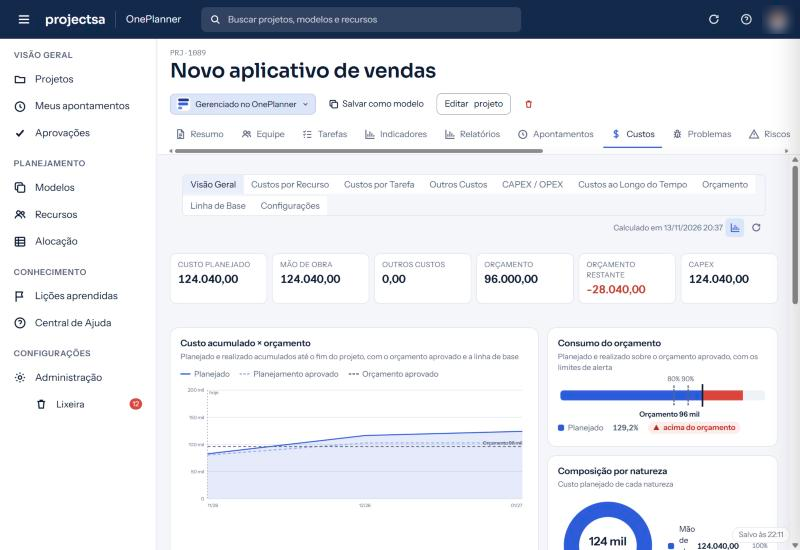
In My time entries, each person sees their own tasks, the weekly timesheet and history. Tracking can be by percentage, by hours or both, according to the project's rule. In My approvals, the manager finds pending time entries and changes in one place, with a counter in the menu, and can approve the team's week in bulk. Date and daily-limit rules prevent entries outside the period or above the working day, overtime follows the resource's financial profile, and corrections after approval preserve what was already approved.
See how it works in OnePlanner: execution and timesheets.
Book a demo and see time entry and approval in OnePlanner.
Frequently asked questions
Does every project need time tracking?
No. In OnePlanner, tracking can be by percentage, by hours or both, depending on the project.
What happens if someone logs too many hours?
The daily-limit and period rules prevent entries above the working day or outside the open period.
Can a time entry be corrected after it has been approved?
Yes. Adjustments after approval preserve what had already been approved.


