
Reports
Project status report: what to include and how to stop building it by hand

The status report is the most-read document in a project and often the one that takes up most of the project manager's time. Every week someone copies dates from the schedule, adds up costs from a spreadsheet, pastes last month's RAG status and writes text that repeats last week's. By the time it reaches leadership, some of the numbers have already changed.
What a status report is for
A status report exists so that people who do not follow the project day to day understand three things in a few minutes: how the project is doing, what has changed since the last report and what needs a decision. If readers finish without knowing what to do, the report has failed, even if it is complete.
What every status report needs
- Overall status: project health in one line, with the reason.
- Schedule: forecast finish compared with the baseline, and the next milestones.
- Cost: budget, actual cost and what is left.
- Scope and changes: what came in or went out and what is awaiting approval.
- Risks and issues: the main ones, with owner and next action.
- Accomplishments for the period: what was delivered since the last report.
- Next steps: what should happen before the next report.
- Decision requests: what the project needs from its readers.
The most common mistakes
- Text instead of numbers: "the project is on track" says nothing without the forecast date next to it.
- Data copied by hand: every copy is a chance for error and a number that is out of date the next day.
- RAG status without criteria: the color chosen by the project manager loses value when everyone uses a different rule.
- A report with no ask: the problem shows up, but nobody knows what leadership needs to decide.
Separate what the system fills in from what the project manager writes
Most of a status report is data: dates, costs, percentages, open risks, pending changes. Those numbers already exist in the project management system and do not need to be typed. What only the project manager can write is the analysis: why the schedule changed, what is being done and what decision is needed. When the report separates those two parts, the project manager spends time on what matters.
How it works in OnePlanner
In OnePlanner, the status report is generated with a reference date and already includes overall status, trend, the schedule against the baseline, the budget with the estimate at completion, health by dimension, completed deliverables, upcoming milestones, risks and scope changes. The indicators are stored as a snapshot of the calculation on that date. The project manager writes the comment, publishes it and forwards it by email, with or without a PDF, and every send is recorded in the report.
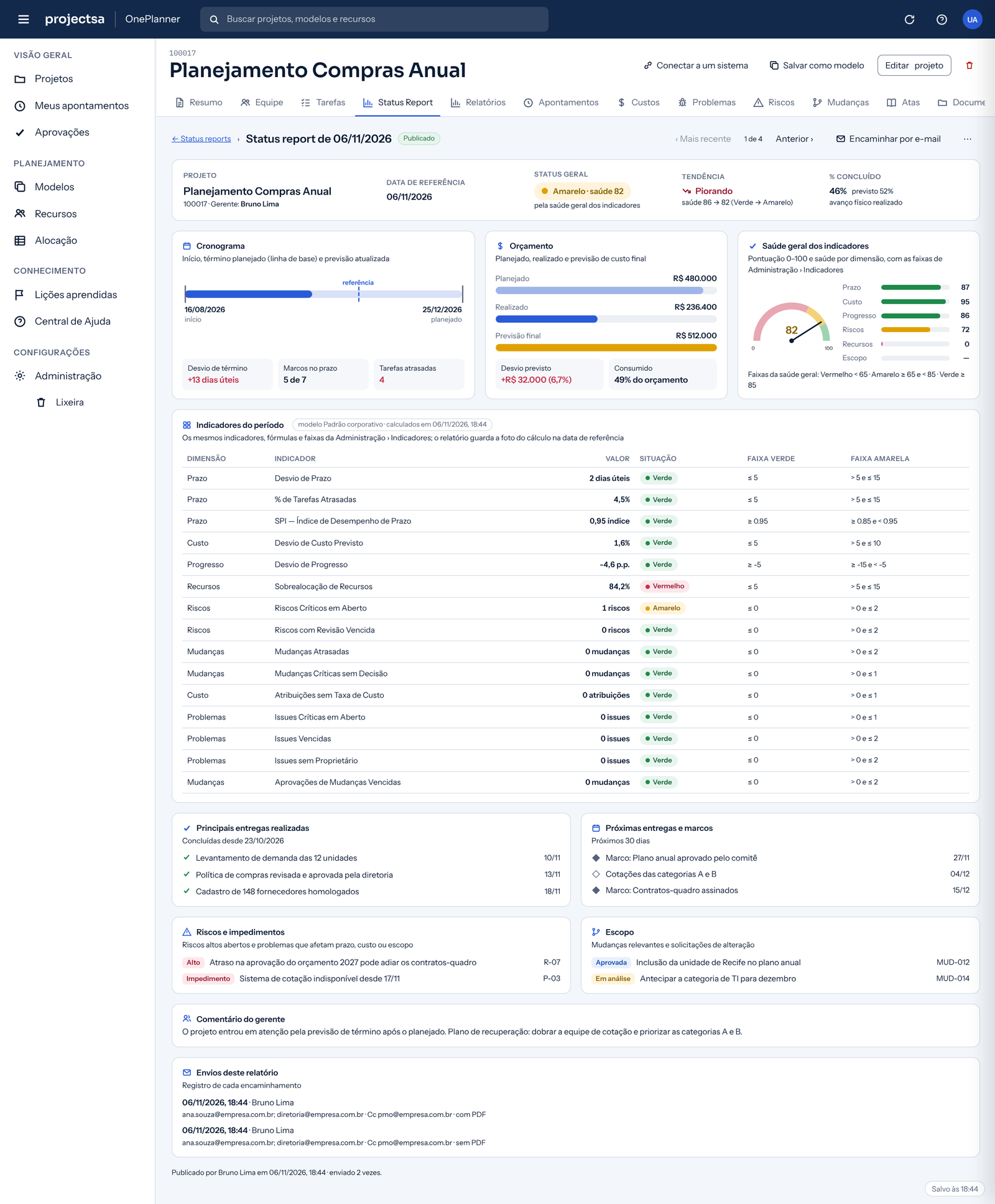
See how it works in OnePlanner: status report.
Book a demo and see the OnePlanner status report generated with data from a project similar to yours.
Frequently asked questions
How often should I send the status report?
It depends on the pace of the project. Short or critical projects usually have a weekly report; long, stable projects, every two weeks or monthly. In OnePlanner, each report is stored with its reference date, so you can compare progress from one send to the next.
Who should receive the status report?
The stakeholders who make decisions or depend on the deliverables: sponsor, PMO, managers of the areas involved and, where it makes sense, the customer.
Does the project manager still need to write anything?
Yes. The indicators come filled in, but the analysis, the explanations and the decision requests belong to the project manager.


